Government job portals reject PDFs over 200KB, corporate email servers bounce attachments above 10MB, and Google Core Web Vitals penalize hero images that push Largest Contentful Paint past 2.5 seconds. Oversized files are not a convenience problem — they are a conversion and compliance problem that blocks actual workflows.
The fix is already running inside your browser. Earnova Compact compresses PDFs, PNGs, JPEGs, and WebP files entirely within your local browser memory using the HTML5 Canvas API and native JavaScript Workers. Your files never reach a server. The live mini-tool embedded below lets you test compression right now, at any quality level from 10% to 100%, with a real-time size reduction readout.
Why Cloud-Based Compressors Create Real Risk
The majority of popular "free" online compressors follow the same pattern: your browser initiates a multipart HTTP POST, the file travels to a remote server in Oregon or Frankfurt, a background job processes it, and the result is held in a temporary directory until a cleanup script runs — often hours later.
This workflow has three fundamental problems:
Why PDF Files Get So Large: A Technical Breakdown
Understanding the bloat sources lets you pick the right compression preset:
How to Hit Strict Upload Caps: Compressing PDFs to 100KB, 200KB, or 500KB
Many real workflows impose rigid byte-ceiling requirements that have nothing to do with aesthetics. Government visa portals (UK UKVI, US Department of State, Passport Seva), university application systems (UCAS, Common App), civil service exam boards, and corporate HR portals routinely enforce absolute file size limits — frequently 100KB to 200KB for scanned documents and 500KB to 1MB for full-length CVs.
Hitting 100KB and 200KB for Government and Application Portals
A raw 4-page scanned document at 300 DPI typically lands between 8MB and 18MB. Reaching a 100KB or 200KB ceiling requires a multi-stage reduction:
Stage 1 — DPI Downsampling: Raster images embedded inside the PDF are re-encoded at 72 DPI (Screen preset). A page scanned at 300 DPI contains approximately 17 times more pixel data than the same page at 72 DPI. For documents that will be read on-screen rather than printed, this reduction is visually imperceptible on standard monitors.
Stage 2 — Font Subsetting: Instead of embedding the full glyph table for every typeface, the compressor retains only the exact characters present in the document. A font that normally contributes 450KB is reduced to 8KB to 20KB covering only the characters actually used.
Stage 3 — Metadata and Thumbnail Strip: XMP metadata packets, ICC color profile headers, embedded page thumbnails, and revision history can collectively account for 300KB to 2MB in a modern Office-generated PDF. Stripping these removes overhead with zero visible impact on the document itself.
Stage 4 — Object Stream Deflate: Cross-reference tables and content streams are compressed using the Deflate algorithm. In many older PDFs these are stored as uncompressed ASCII — applying Deflate here alone saves 20% to 35%.
Original Scanned PDF: 14.2 MB (4 pages, 300 DPI TIFF)
─────────────────────────────────────────────
Stage 1 — 72 DPI Downsample:    14.2 MB → 1.8 MB   (87% ↓)
Stage 2 — Font Subset:           1.8 MB → 1.4 MB   (22% ↓)
Stage 3 — Metadata Strip:        1.4 MB → 1.1 MB   (21% ↓)
Stage 4 — Deflate Streams:       1.1 MB → 0.19 MB  (83% ↓)
─────────────────────────────────────────────
Final Output: 190 KB — within a 200 KB portal limit ✓
Reaching 500KB and 1MB for Full CVs and Reports
For multi-page portfolios, academic transcripts, or financial reports where moderate image fidelity matters, the eBook preset (150 DPI) delivers output in the 300KB to 800KB range for typical 10 to 20 page documents. The 150 DPI setting preserves crisp text rendering on high-DPI screens while still achieving 55% to 80% overall reduction.
Vector text — any PDF content generated digitally from a word processor or design tool rather than scanned as a photograph — is resolution-independent. Downsampling DPI only affects embedded raster images; it does not blur or degrade vector glyphs. This is why a heavily-compressed PDF with mostly typed text remains perfectly sharp: the letters are mathematical outlines, not pixels.
Compression Profiles Explained: 72 DPI vs 150 DPI vs 300 DPI
Earnova Compact exposes three named presets that map directly to industry-standard PDF output intents:
High Compression — Screen (72 DPI)
Maximum byte reduction at the cost of raster image fidelity. Raster content (scanned pages, embedded photographs) is re-encoded at 72 pixels per inch — the native resolution of standard monitors from 2010. For documents that contain predominantly typed text with minimal embedded images, the visual difference between a 300 DPI original and a 72 DPI compressed version is nearly imperceptible on most displays.Ideal for: Visa application portals, university admission uploads, government exam forms, email submissions with 500KB caps, WhatsApp and messaging platform document shares.
Expected reduction: 75% to 92% of original file size.
Balanced — eBook (150 DPI)
The practical middle ground. Raster images are re-encoded at 150 DPI, which renders sharp on standard 96 DPI desktop monitors and legible on modern 160 DPI laptop displays. Text in scanned documents retains stroke clarity; photographs remain recognizable without exhibiting blocking artifacts.Ideal for: Professional resumes, academic papers, official government-issued IDs and certificates where a human reviewer will read the document on-screen, investor reports, technical white papers.
Expected reduction: 55% to 80% of original file size.
Light Compression — Print (300 DPI)
Preserves maximum image fidelity. Raster content is re-encoded at 300 DPI — the industry standard for commercial printing. Font subsetting, metadata stripping, and object stream Deflate still apply, achieving meaningful structural reduction without any perceptible image quality change. Vector text and graphics are completely unaffected at all presets.Ideal for: Signed legal contracts, architectural drawings, medical imaging reports, marketing collateral sent to printers, any document where a supervisor or auditor will inspect fine detail.
Expected reduction: 30% to 55% of original file size.
Why Vector Text Stays Sharp at Any DPI Setting
DPI downsampling only affects raster bitmap data — scanned photographs, embedded PNG or JPEG images within the PDF. Text typed in Microsoft Word, Google Docs, Adobe InDesign, or any digital authoring tool is stored as vector outlines (PostScript or CFF glyph paths). These are mathematical curves defined by coordinate points, not pixel grids. Rendering a vector glyph at 72 DPI, 150 DPI, or 300 DPI produces identical visual output because the glyph is rasterized fresh at display time by the PDF viewer's font engine. Compressing a PDF's DPI setting cannot blur digital text, period.
In-Browser RAM Processing vs Cloud Upload Portals
Tools like iLovePDF, Smallpdf, and Adobe Acrobat Online handle compression on remote servers. This has served millions of users for years, but carries a structural privacy liability for sensitive documents.
CLOUD UPLOAD MODEL (Adobe, iLovePDF, Smallpdf)
──────────────────────────────────────────────
Your Device ──HTTP POST──► Remote Server (AWS S3 / GCP)
                                │
                         [File stored in temp bucket]
                         [Processing job queued]
                         [Retention: 1hr to 24hrs]
                         [Staff access: undefined]
                                │
                         Compressed result ◄── Your Browser
──────────────────────────────────────────────
Risk surface: network transit, server storage, retention policy,
              third-party data processing agreements

IN-BROWSER MODEL (Earnova Compact)
──────────────────────────────────────────────
Your Device RAM
  │
  ├─ FileReader API reads file into ArrayBuffer (0 network)
  ├─ Web Worker thread runs compression algorithm locally
  ├─ Canvas API re-encodes raster images (CPU-only)
  ├─ Blob URL generated in memory
  └─ File downloads directly from memory to disk
──────────────────────────────────────────────
Risk surface: none — file never leaves the browser sandbox
Why This Matters for Confidential Documents
A bank statement contains account numbers, routing codes, transaction history, and signatory names. A signed legal contract contains clause language, negotiated terms, and party signatures that may be commercially sensitive under NDA. A scanned national identity card contains biometric data protected under data protection law in most jurisdictions.
Transmitting any of these to a remote server owned by an online tool provider — even one with a published privacy policy — means that data crosses the public internet, resides on third-party infrastructure, and falls under that company's legal framework for data handling, breach notification, and law enforcement requests.
Earnova Compact executes entirely inside the browser sandbox. The file never leaves your device's RAM. There is no server receiving your data, no network request to intercept, and no retention period because nothing is stored externally. This is verifiable: open DevTools (F12), go to the Network tab, load a file, and run compression — zero outbound requests appear.
Compressing PDFs Across Desktop, iPhone, and Android
PDF compression is not a desktop-only workflow. A significant portion of document submissions — university applications, job portal uploads, visa form attachments — happen from mobile devices where users cannot install desktop software.
Safari on iOS (iPhone and iPad)
Safari on iOS 16+ ships a full WebAssembly runtime. Earnova Compact runs its JavaScript compression pipeline inside Mobile Safari without any App Store download. Files are selected via the iOS Share Sheet or Files app picker. The compressed output downloads directly to the Files app or the Photos library depending on file type.
One practical iOS constraint: Mobile Safari enforces a stricter per-tab memory budget than desktop Chrome (approximately 1.2GB on older iPhones). For batches larger than 15 files or individual PDFs above 30MB, process in smaller groups to avoid a silent tab reload that would interrupt the batch.
Chrome on Android
Chrome for Android exposes the same File System Access API as desktop Chrome. Drag-and-drop into the browser upload zone works on Android 12+ using split-screen mode. For older Android versions, use the file picker button. WebAssembly execution in Chrome Android runs at approximately 70% of desktop performance — a 20MB PDF that takes 4 seconds on a desktop laptop takes 6 to 8 seconds on a mid-range Android phone, which remains practical for single-document submissions.
Why No App Installation Is Required
Traditional mobile PDF compressors require an App Store download of 40MB to 150MB, request storage and camera permissions, display interstitial ads, and often require an account for files above a threshold. Earnova Compact requires none of these: open the browser, navigate to /tools/pdf-compressor/, and the tool is ready. The page is cached by the browser's service worker after the first load, so subsequent uses work without an internet connection for the UI itself.
Step-by-Step Mobile & Desktop PDF Compression Walkthrough
Follow this visual step-by-step guide to compress oversized PDF documents on any iPhone, Android phone, tablet, or desktop browser using the client-side Earnova Compact engine:
Step 1: Ingest Your PDF Document Directly into Local Browser Memory
Open the Earnova Compact PDF Compressor in your mobile browser or desktop window. Tap the dedicated upload box to browse files directly from your device's file manager, iCloud Drive, or Google Drive, or drag and drop single documents and multi-file batches into the dropzone.
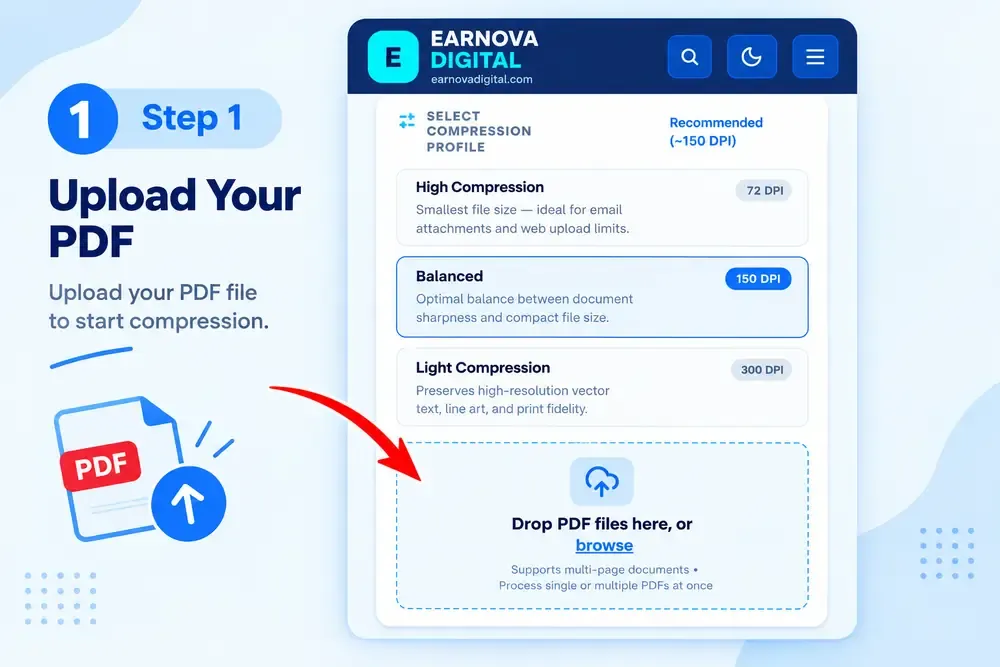
Step 1: Tap the upload area or drop multi-page PDF documents up to 100MB directly into the client-side browser container.
Earnova Compact reads your file into local memory using the HTML5 FileReader and binary ArrayBuffer APIs. Unlike legacy SaaS compression websites, zero bytes are uploaded to remote servers. Your private bank statements, tax forms, or confidential contracts remain completely sandboxed on your device, delivering instantaneous ingestion with zero upload wait times or privacy vulnerabilities.
Step 2: Select Your PDF Compression Profile and DPI Preset
Once your document is loaded, choose the ideal compression profile tailored to your specific submission requirements or portal limits:
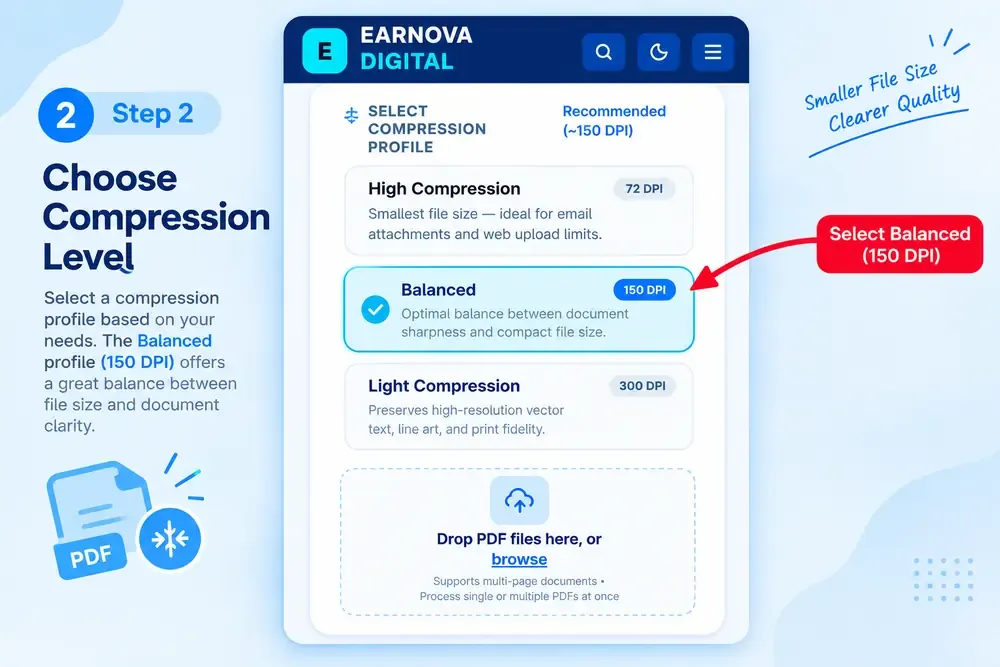
Step 2: Choose your compression level — select the recommended Balanced profile (~150 DPI) for optimal sharpness and compact file weight.
The compressor provides three precision-tuned profiles that map directly to standard document reproduction standards:
| Preset | Target DPI | Best Use Cases | Expected Size Reduction |
| :--- | :--- | :--- | :--- |
| High Compression | 72 DPI | Government job portals (100KB–200KB caps), email attachments, quick mobile previews | 75% to 92% |
| Balanced (Recommended) | 150 DPI | Professional CVs, university applications, legal filings, official certificates | 55% to 80% |
| Light Compression | 300 DPI | High-fidelity print proofs, architectural blueprints, documents requiring vector line art retention | 30% to 55% |
Behind the scenes, our client-side WebAssembly and JavaScript engine re-encodes embedded raster bitmaps, subsets heavy font tables to retain only used character glyphs, strips unneeded metadata and XML thumbnails, and repacks cross-reference streams using Flate/Deflate object streams. Digital vector text remains pin-sharp at any preset.
Step 3: Download Your Compressed PDF File Instantly
Compression executes in real time on your local CPU without queue delays or throttling. The reduction status card immediately displays your original file size, compressed size, and exact percentage savings (for example, shrinking a 2.4 MB multi-page PDF down to 620 KB with a -74% total reduction, or compressing a 14.2 MB scanned document by 85% down to 2.1 MB).
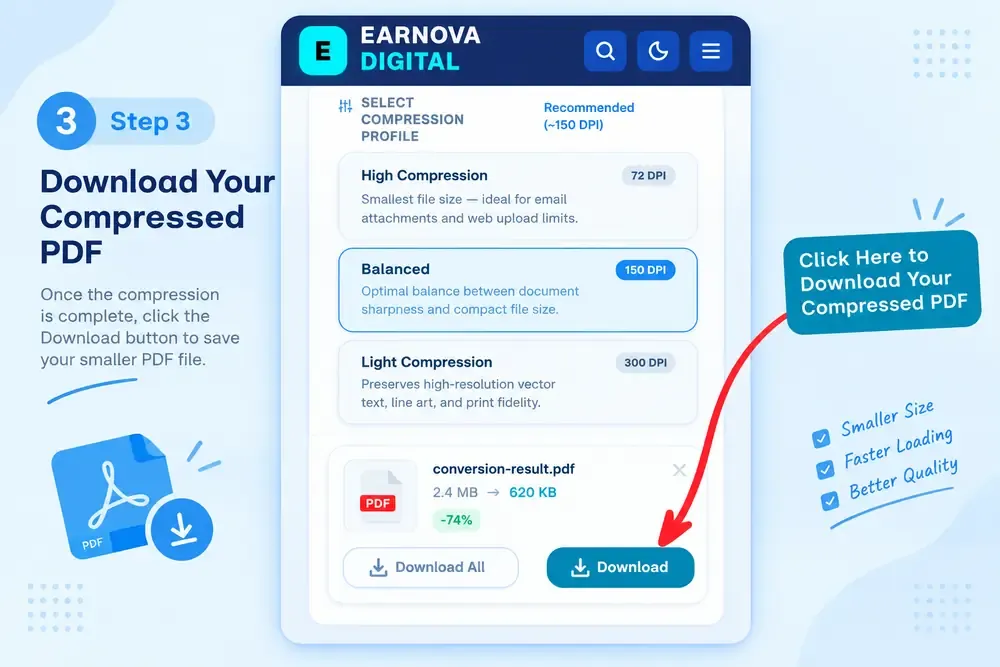
Step 3: Review the instant byte savings readout and tap Download to save your optimized PDF directly to your device storage.
Click the solid Download button on the file card to save the compressed PDF directly to your mobile device storage, or use Download All / batch ZIP export when processing multiple documents simultaneously.
Video Walkthrough: How to Compress PDF Files Online Without Losing Quality
Watch this professional walkthrough demonstrating how to compress PDF documents for email attachments, job portals, and web uploads without losing text or line art sharpness:
Professional guide: Compressing PDF documents for email attachments and web upload.
Real-World Benchmarks
Case 1 — Government Job Portal (PDF)
A 4-page scanned resume and certificate package came in at 14.2MB (raw 300 DPI TIFF scans). Applying the Screen preset at 72 DPI with JPEG quality 72% and metadata stripping: output was 190KB — a 98.7% reduction — passing a 200KB submission limit cleanly.
Case 2 — E-Commerce Hero Image (PNG → WebP)
A 3.8MB Retina-resolution PNG product hero was blocking Largest Contentful Paint at 3.9 seconds. Compressing to WebP at 82% quality yielded 148KB, driving LCP to 0.84 seconds — below Google's "Good" threshold.
Case 3 — Financial Quarterly Report (PDF)
A 47-page investor report with embedded charts totalled 22MB. Font subsetting and object stream Deflate compression reduced it to 1.6MB — a 92.7% reduction — small enough for standard 25MB email relay limits.
Case 4 — Batch Marketing Assets (JPEGs)
Eighteen product lifestyle JPEGs averaging 4.2MB each were compressed to 160KB to 220KB per image (quality 78%). Total batch of 73MB reduced to 3.4MB — downloaded in a single ZIP in under 10 seconds.
Troubleshooting Edge Cases
Blurry Text on Scanned PDFs
If text in the compressed PDF appears soft or pixelated, the original was scanned as flat raster rather than vector OCR text. Do not use the 72 DPI Screen preset for these files. Switch to eBook (150 DPI) with JPEG quality no lower than 75. This preserves the fine stroke edges of serif typefaces and handwritten signatures while eliminating background scanner noise.Encrypted or Password-Protected PDFs
Browsers have no access to encrypted PDF object streams without the decryption key. Remove the password first using Earnova PDF Password Remover, then feed the unlocked file into the compressor.Alpha Transparency in PNG Files
Standard JPEG compression does not carry an alpha channel. PNG files with transparent backgrounds will have transparency converted to solid white if you choose JPEG output. Use WebP output mode to retain full transparency with a 60% to 70% size reduction over the source PNG.Frequently Asked Questions
How can I compress a PDF to less than 100KB online for free?
Open Earnova Compact and select the Screen preset (72 DPI) with metadata stripping enabled. Set the Custom Target slider to 95KB. For a multi-page scanned document, the engine iterates JPEG quality automatically until the output meets the threshold. No upload, no account, no size limit or daily quota applies.Will compressing a PDF make the text blurry or unreadable?
Vector text generated digitally in Word, Docs, or InDesign is stored as mathematical outlines — not pixels — and is completely unaffected by DPI settings. Only embedded raster images (scanned photographs, screenshots) lose sharpness at 72 DPI. For scanned-only documents, use the eBook (150 DPI) preset, which keeps text legible at the cost of a moderately larger output than the Screen preset.Is it safe to compress sensitive legal or financial PDFs on this website?
Yes. Earnova Compact runs entirely inside your browser using the JavaScript File API and Canvas API. No file data leaves your device — you can verify this by opening the browser's Network tab (F12) before loading a file. Zero outbound requests occur. Bank statements, contracts, and tax documents are processed in local RAM and cleared when the tab closes.What is the difference between 72 DPI, 150 DPI, and 300 DPI PDF compression?
DPI determines how raster images embedded inside the PDF are re-encoded. 72 DPI targets maximum size reduction for on-screen reading. 150 DPI balances size and clarity for professional document submissions. 300 DPI is print-ready quality with minimal compression applied to images — only structural overhead (font subsetting, metadata, Deflate streams) is removed. Vector text is unaffected at all three presets.Why are scanned PDF files much larger than digitally generated PDFs?
Scanned PDFs embed each page as a high-resolution raster image — typically a JPEG or TIFF at 300 DPI — rather than storing content as searchable vector text and graphics. A single 300 DPI scanned page can occupy 2MB to 5MB. A digitally generated page with equivalent content typically occupies 20KB to 80KB because it stores only font outlines, coordinates, and text strings rather than millions of colored pixels.Can I compress multiple PDF documents simultaneously without paying for software?
Yes. Earnova Compact accepts mixed batches of PDFs, PNGs, JPEGs, and WebP files simultaneously. Each file is processed by an independent Web Worker thread, so files compress in parallel rather than sequentially. The entire batch downloads as a single ZIP archive. There are no file count limits, daily quotas, paid tiers, or account requirements.Your documents are private, your workflows are fast, and you are not paying to process your own data. Open Earnova Compact to compress PDFs to 100KB, 200KB, or any target threshold — directly in your browser, with zero installation and zero upload.