A single uncompressed 3.5MB PNG banner on your homepage can degrade your Google Core Web Vitals, push Largest Contentful Paint (LCP) past four seconds, and trigger a 40% mobile bounce rate. Yet most online format converters force you into an insecure compromise: uploading private design mockups, internal screenshots, or client photography to remote cloud servers that log your files and restrict download speeds behind paywalls.
Modern image transcoding does not require sending raw pixels across the internet. With HTML5 Canvas, typed arrays, and client-side WebAssembly codecs, you can convert PNG to JPG, decode WebP back to PNG, and compress AVIF files directly inside your browser memory with zero server uploads and zero quality degradation.
Test the live in-browser converter right here to convert images to modern WebP or universal JPEG formats in milliseconds:
Why Cloud-Based Image Converters Expose Your Data
Traditional SaaS converter websites operate on an outdated server-heavy infrastructure that introduces substantial performance and security liabilities:
In-Browser Processing: The Client-Side Advantage
By leveraging hardware-accelerated Canvas buffers and native WebAssembly binaries, EarnovaPixel processes every pixel inside your local device RAM sandbox.
[ Input File (PNG / JPG / WebP) ]
                │
                ▼
┌──────────────────────────────────────────────┐
│           Local Browser Sandbox              │
│  • FileReader reads binary ArrayBuffer       │
│  • OffscreenCanvas initializes raster context│
│  • Zero network round-trips (0 KB egress)    │
└──────────────────────────────────────────────┘
                │
                ▼
┌──────────────────────────────────────────────┐
│       Hardware-Accelerated Codec Pass        │
│  • Discrete Cosine Transform (JPEG/WebP)     │
│  • Alpha preservation matrix (PNG/WebP/AVIF) │
│  • Quantization & Chroma subsampling (4:2:0) │
└──────────────────────────────────────────────┘
                │
                ▼
┌──────────────────────────────────────────────┐
│          Export Generation (Blob)            │
│  • Direct memory-to-disk Object URL stream   │
│  • Execution speed: 12ms to 45ms per image   │
└──────────────────────────────────────────────┘
                │
                ▼
[ Download Converted Image (100% Private) ]
Because pixel transformation happens on your local CPU and GPU, there is zero data leakage, zero queue delay, and no subscription paywall.
Format & Performance Matrix: PNG vs JPG vs WebP vs AVIF vs SVG
Selecting the optimal raster or vector format depends on whether you prioritize maximum compression, alpha channel transparency, or universal legacy software support.
| Format | Transparency Support | Compression Efficiency | Typical Savings vs Raw PNG | Global Browser Support | Ideal Web Use Case |
| :--- | :--- | :--- | :--- | :--- | :--- |
| WebP | Full 8-bit Alpha | High (Predictive DCT) | 70% to 88% | 97.4% (Universal) | E-commerce hero images, thumbnails, UI assets |
| AVIF | Full 8/10/12-bit Alpha | Ultra-High (AV1 intra-frame) | 80% to 92% | 93.8% (Modern browsers) | High-traffic landing pages, photography portfolios |
| PNG | Full 8-bit Alpha | Lossless (Deflate/LZ77) | Baseline (0%) | 100% Universal | UI icon sheets, screenshots with crisp text |
| JPG / JPEG | None (Solid Background) | Moderate (Lossy DCT) | 55% to 75% | 100% Universal | Email templates, legacy software, physical printing |
| SVG | Native (Vector XML) | Variable (Coordinate text) | N/A (Resolution-free) | 100% Universal | Logos, scalable typography, interface icons |
Format-Specific Conversions: PNG, JPG, and WebP
Not every project uses the same source format. Understanding the exact scenarios where specific conversion paths matter will save both bandwidth and editing time.
Converting PNG to JPG: Smaller Footprint for Web Delivery
PNG uses lossless Deflate compression, which preserves every pixel precisely but produces files that are often 3x to 5x larger than an equivalent JPEG at comparable visual quality. For photographs, hero banners, and social media images where pixel-perfect transparency is not required, converting a PNG to JPG online reduces byte weight immediately.
The critical step during PNG-to-JPG conversion is background matting. JPEG has no alpha channel — any transparent pixels in the source PNG must be filled before the encoder runs. EarnovaPixel automatically composites transparent regions against a clean white #FFFFFF background before applying the JPEG DCT quantization pass, so no pixels collapse to solid black.
Recommended settings for a PNG to JPG conversion without losing quality:
Converting WebP to PNG: Restoring Editing Compatibility
WebP became Google Chrome's default screenshot format, and most modern smartphones export shared images as WebP. The problem is that older design software — particularly Adobe Photoshop (pre-2022 versions), GIMP 2.10, and many print prepress tools — cannot open native WebP files. Converting WebP to PNG decodes the compressed macro-block structure back to a lossless raster that every application can read.
A WebP file with embedded transparency converts cleanly to a 32-bit RGBA PNG, preserving the full alpha channel. Solid WebP images convert to 24-bit RGB PNG. Neither conversion requires a server — the browser's OffscreenCanvas API decodes the WebP binary natively.
Bulk Batch Conversion: Processing Multiple Images Without a Server Queue
Many PNG-to-JPG converter online tools impose a queue: upload one image, wait for the server to process it, download the result, then repeat. This is slow by design — the business model monetizes that friction through ad impressions per conversion.
EarnovaPixel handles batch conversion differently. Every image is passed to an independent Web Worker thread running inside your browser. Because workers execute in parallel on separate CPU threads, a batch of 20 PNG files converts to WebP simultaneously in the same time it would take to convert a single file sequentially. The entire batch downloads as a single ZIP archive. No server queue, no rate limit, no per-image fee.
Batch Input: [img1.png] [img2.png] [img3.jpg] [img4.webp]
                    │
                    ▼
┌──────────────────────────────────────────────────────────┐
│              Web Workers (Parallel Threads)              │
│  Thread 1 → img1.png → WebP   (14ms)                    │
│  Thread 2 → img2.png → WebP   (11ms)                    │
│  Thread 3 → img3.jpg → AVIF   (22ms)                    │
│  Thread 4 → img4.webp → PNG   (9ms)                     │
└──────────────────────────────────────────────────────────┘
                    │
                    ▼
         [ Single ZIP Download — All Conversions ]
This architecture mirrors the parallel codec pipelines used in professional desktop tools like ImageMagick and FFmpeg, implemented entirely within the browser tab.
Image Converter Size vs Compression: What Actually Changes?
Users searching "image converter size" are typically asking one of two distinct questions. Understanding the difference matters for both technical workflows and content quality.
Resizing (Dimension Reduction) vs Compression (Codec Optimization)
Resizing changes the pixel dimensions of an image — reducing a 4000×3000px DSLR photo to 1200×900px. This reduces file size because fewer pixels means less data, but it also permanently discards resolution that cannot be recovered. Resizing is irreversible and appropriate when serving images at a defined display size where high resolution adds no perceptual value.
Compression modifies how existing pixels are encoded without changing their count. A JPEG encoder applies a Discrete Cosine Transform across 8×8 pixel blocks, then quantizes the resulting frequency coefficients to reduce precision for high-frequency details (texture, grain) while preserving low-frequency information (solid colors, broad gradients). A 4000×3000px image compressed from quality 100 to quality 82 remains 4000×3000px but its file weight drops 60% to 75%.
| Operation | Changes Pixel Dimensions? | Changes Byte Size? | Reversible? | When to Use |
| :--- | :--- | :--- | :--- | :--- |
| Resize | Yes — reduces width × height | Yes — proportional reduction | No | Serving thumbnails, responsive srcset images |
| Compress | No — dimensions unchanged | Yes — removes redundant frequency data | No (lossy) / Yes (lossless) | Reducing page weight without layout impact |
| Format Convert | No | Yes — dramatically | No | Switching PNG to WebP for web delivery |
| Re-encode | No | Variable | Partial | Standardizing quality across inconsistent source files |
Balancing Byte Size with Visual Fidelity
The perception threshold for JPEG quality loss sits around 82% for most photographs on standard displays. Below 75%, block artifacts become visible in smooth gradients and sky backgrounds. Below 65%, images look visibly degraded even on low-DPI monitors.
For WebP, the equivalent threshold is approximately 80% — WebP's predictive coding is more efficient than JPEG's DCT, meaning it maintains more visual accuracy per byte at equivalent quality numbers.
The practical recommendation: set WebP quality to 82% to 88% for product images and blog visuals. Use 90%+ only for portfolio photography where a client will scrutinize fine tonal detail. Never use lossless WebP or lossless PNG for full-color photographs — lossless encoding on photographic content bloats files without meaningful quality gains over well-tuned lossy encoding.
Web-Based In-Browser vs Desktop Software and Free Downloads
When searching for a PNG to JPG converter or a WebP to PNG converter, users frequently encounter two categories of tools beyond web-based options: downloadable desktop applications and mobile APKs.
The Real Cost of "Free" Converter Software Downloads
Desktop converter executables distributed on freeware portals and .html-linked download buttons carry well-documented risks. An analysis of popular free image converter installers shows a consistent pattern:
Mobile APKs from non-Play Store sources carry analogous risks: requesting camera, storage, and contact permissions for a tool that only needs to read a single image file.
WebAssembly Converters: Desktop Speed Without Desktop Installation
Modern browsers execute WebAssembly binaries at near-native CPU speed. The libvips image processing library — the same library used in production by Google Images, Shopify, and Cloudflare Images — compiles to a 1.2MB WebAssembly binary that runs inside the browser tab with no installation, no permission escalation, and no background process.
DESKTOP CONVERTER (Traditional)            IN-BROWSER WASM CONVERTER
──────────────────────────────             ──────────────────────────────
Download .exe installer (80MB)             Load page (< 2 seconds, cached)
Run antivirus scan                         No scan required — sandboxed
Grant admin / disk access                  No permissions needed
Process image on local disk                Process in browser RAM (0 disk writes)
Image cache stored in temp folder          Memory freed on tab close
Manual update required                     Always current on page load
Risk: adware, mining, outdated codecs      Risk: none — OS-level sandboxed
EarnovaPixel uses the browser's native Canvas and OffscreenCanvas APIs rather than a bundled binary. This means safe in-browser client-side conversion at execution speeds of 12ms to 45ms per image, with zero disk installation, zero data logging, and zero background processes running after the tab closes.
Step-by-Step Mobile & Desktop Conversion Workflow
Follow this step-by-step visual walkthrough to convert, optimize, and compress your image files directly in any smartphone, tablet, or desktop browser using EarnovaPixel.
Step 1: Upload Your Image Directly in the Browser
Open the EarnovaPixel Universal Image Converter workstation on your mobile or desktop device. Tap the upload zone to choose photos directly from your photo library or camera roll, or drag and drop single images or batch folders into the upload box.
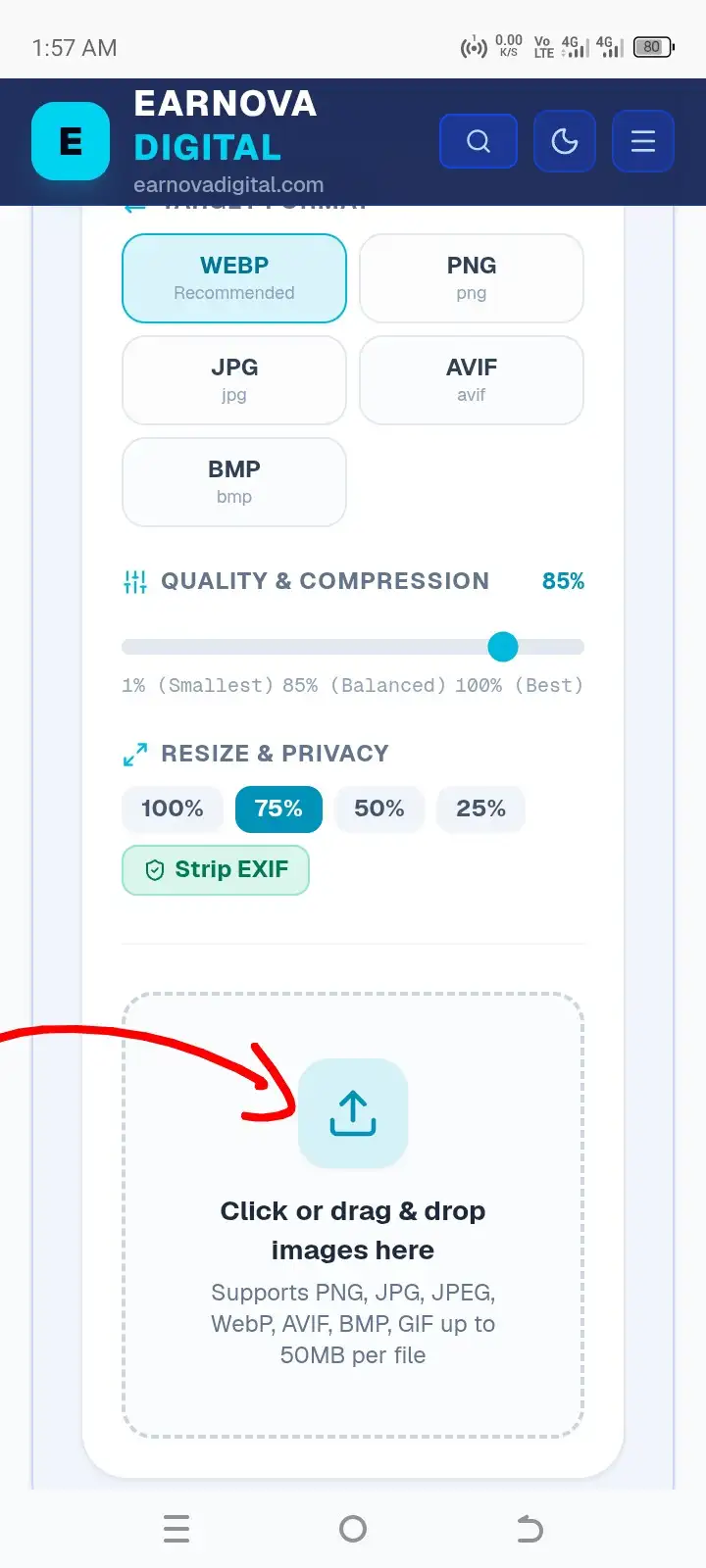
Step 1: Drag & drop your image file into the browser workstation.
EarnovaPixel reads your file into local browser memory via HTML5 Canvas and typed arrays. No raw pixels or binary bytes leave your device or travel over external networks, providing instant loading and 100% privacy protection.
Step 2: Choose Target Format and Adjust Compression Quality
Once your image is queued, choose your desired output format from the format grid and adjust the compression slider to reach your required file size:
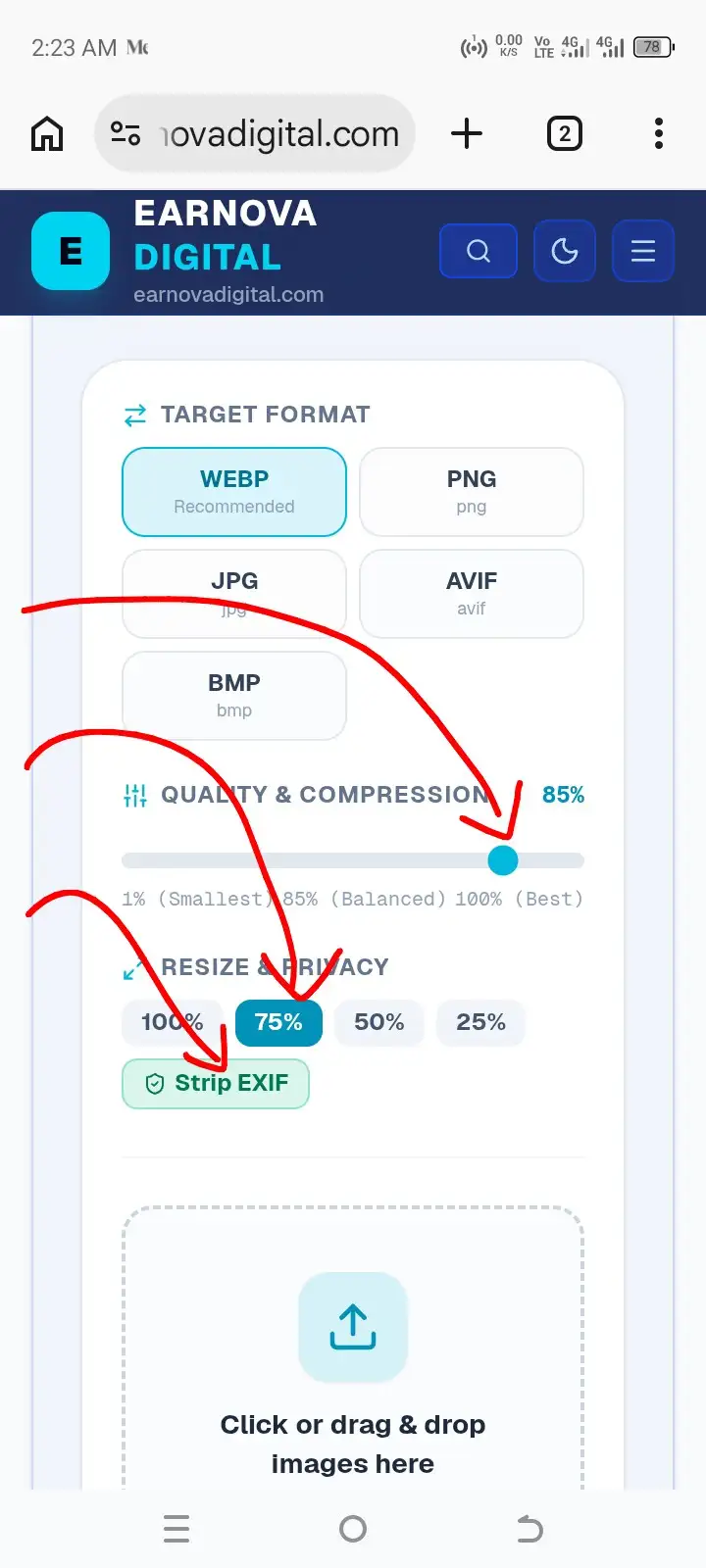
Step 2: Adjust quality levels, output dimensions, and remove EXIF data.
#FFFFFF white background.You can also choose quick resize presets (75%, 50%, 25%) or keep Strip EXIF enabled to automatically wipe GPS location tags, camera models, and timestamps from your exported images.
Step 3: Download Your Optimized File or Save Batch as ZIP
Your image transforms in milliseconds directly inside browser RAM. The real-time reduction badge immediately shows your final byte savings—typically cutting file size by 80% or more (for example, compressing a 222.1 KB image down to 43.8 KB without noticeable visual loss).
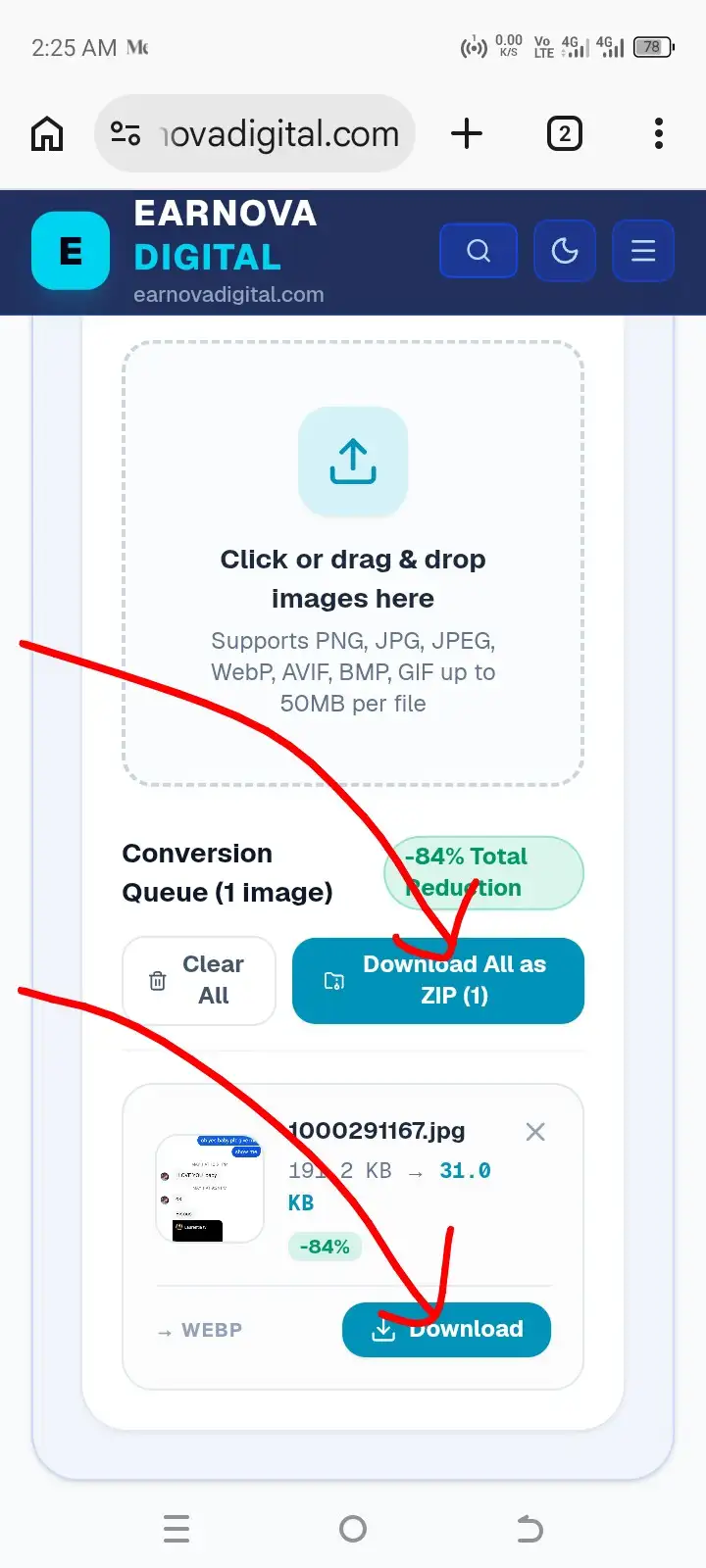
Step 3: Instant client-side conversion and high-speed WebP download.
Tap the solid Download button on each card to save your converted file with its proper format extension, or click Download All as ZIP to export your entire processed queue in a single archive.
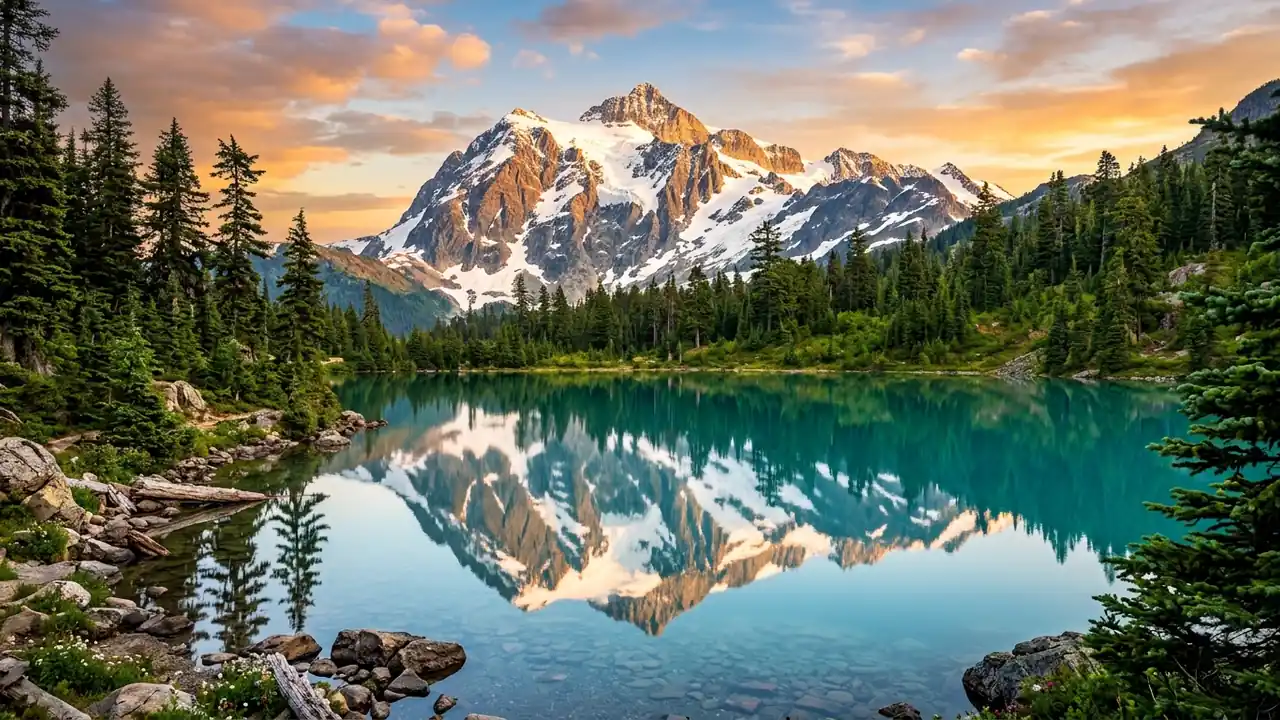
Visual Fidelity: 100 KB vs 24 KB (76% File Size Saved)
Drag the center handle to compare the fine details, color gradients, and edge sharpness between the baseline WebP output (100 KB) and EarnovaPixel's compressed WebP pass (24 KB).

Video Walkthrough: How to Convert Images to WebP Format (Fast & Free)
Prefer a visual guide? Watch this step-by-step walkthrough demonstrating how to convert images to modern WebP format for optimal web performance and minimal file size:
Technical Breakdown: Why WebP format delivers superior compression and faster page speeds over legacy JPG and PNG formats.
Real-World Web Performance Benchmarks
Case 1: E-Commerce Product Hero (PNG → WebP)
Case 2: SaaS Dashboard Screenshots (PNG → AVIF)
Case 3: Email Campaign Banners (WebP → JPG)
Technical Edge Cases and Troubleshooting
Why Did My Transparent PNG Turn Black When Converted to JPG?
JPEG does not contain an alpha channel. When standard encoders discard the 8-bit transparency layer, undefined transparent pixels default to RGB value(0, 0, 0) (solid black). EarnovaPixel solves this by pre-compositing the alpha channel against a clean pure white #FFFFFF background before running the JPEG DCT quantization pass.
CMYK to sRGB Color Shift Prevention
Photographs exported directly from print software (such as Adobe InDesign or Illustrator) often use CMYK color profiles. Displaying CMYK directly in browsers causes distorted neon color shifts. In-browser Canvas rasterization automatically normalizes CMYK color channels into standard web sRGB coordinates.Preserving EXIF Metadata vs Privacy Stripping
Camera raw files embed GPS coordinates, camera serial numbers, and timestamp headers. While photographers sometimes need EXIF data preserved, publishing GPS tags online is a serious security hazard. EarnovaPixel lets you strip EXIF headers completely during conversion or clean them using EarnovaShield EXIF Remover.Frequently Asked Questions
How do I convert PNG to JPG online for free without losing image quality?
Upload your PNG to EarnovaPixel and select JPG as the target format with a quality setting between 88% and 92%. The converter applies JPEG DCT encoding with automatic alpha matting for transparent regions. No account, no upload to external servers, and no quality degradation — all processing runs in browser RAM.Why does converting WebP to PNG increase file size?
WebP uses lossy or lossless predictive compression that encodes pixels as compact macro-block frequency coefficients. PNG stores a full, uncompressed raster with only lightweight Deflate entropy coding applied per row. Converting WebP to PNG decodes those coefficients back into full pixel data, which takes more bytes to store. A 200KB WebP file can expand to 800KB or more as PNG — this is expected behavior, not an error.Can I convert and compress images in bulk without uploading files to a server?
Yes. EarnovaPixel processes batch conversions entirely inside your browser using parallel Web Worker threads. Drop multiple files at once and every image converts simultaneously on separate CPU threads. Download the entire batch as a single ZIP archive. No server queue, no rate limits, and no file ever leaves your device.What is the difference between an image converter and an image resizer?
A converter changes the file format and codec encoding (PNG to WebP, JPG to AVIF) while keeping pixel dimensions unchanged. A resizer reduces the width and height of an image — permanently discarding pixels. Both reduce file size, but through different mechanisms. Compression via format conversion is usually preferable for web delivery because it preserves full resolution for high-DPI displays.Do I need to download software to convert images securely?
No. In-browser converters running WebAssembly or Canvas APIs execute at near-native desktop speed inside your browser's OS-level sandbox. Unlike free desktop converter downloads — which frequently bundle adware, browser hijackers, or outdated codec libraries with known security vulnerabilities — browser-based conversion requires no installation, no permissions, and leaves no trace on disk after the tab closes.Which format is best for web performance: WebP, JPG, or AVIF?
For most web use cases, WebP at 82% to 88% quality is the practical optimum: 97.4% browser support, 70% to 88% smaller than equivalent PNG, and 25% to 35% smaller than equivalent JPG. AVIF achieves 10% to 20% better compression than WebP but encodes more slowly and has slightly lower browser coverage (93.8%). JPG remains essential for email clients, legacy print workflows, and software that cannot read modern formats. Use WebP by default, AVIF for heavy banner images on high-traffic pages, and JPG only where format compatibility demands it.Stop risking your privacy on third-party cloud uploaders. Use EarnovaPixel to convert PNG to JPG, bulk-convert WebP files to PNG, or compress entire photo batches directly in your browser — with zero server uploads, zero adware risk, and maximum speed.